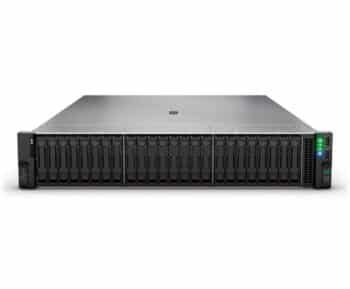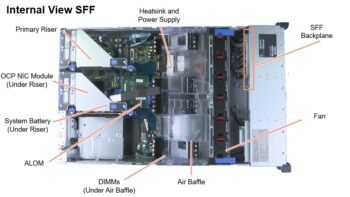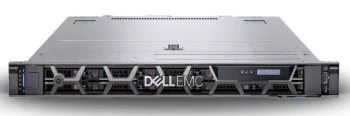
HP server hard drive issues
HP server hard drive issues Hard drives are one of the most failure-prone components in any server — including HP ProLiant models. Whether you’re facing drive errors, slow performance, or RAID failure, understanding the root cause is essential to keep your systems running.
This guide will help you troubleshoot the most common HP server hard drive issues and provide tips for prevention and replacement in 2025.
Common Symptoms of Hard Drive Failure in HP Servers
If you notice any of the following symptoms, your HP server hard drive may be failing:
- Repeated RAID rebuilds
- 1783-Slot X Drive Array Controller Failure
- Slow read/write speeds on virtual machines
- SMART alerts in iLO
- Clicking or grinding noises from the drive bay
- Drive status LED is amber or red
1. Run HP Smart Storage Administrator (SSA)
HP server hard drive issues
The Smart Storage Administrator (SSA) tool helps you check the health status of your drives.
Steps:
- Boot into SSA during server startup (usually F10 or F9)
- Select your RAID controller (e.g., HPE Smart Array P440ar)
- View drive status, errors, or predictive failures
If the drive is marked as “Imminent Failure,” replacement is the only solution.
2. Check Drive Status via iLO
The Integrated Lights-Out (iLO) management tool gives remote access to hardware logs.
Go to:
- iLO Dashboard → Storage → Physical Drives
- Check for error messages like:
- “Drive firmware outdated”
- “Unrecoverable sector count exceeded”
Tip: Keep your iLO firmware and RAID controller drivers up to date for accurate diagnostics.
3. Verify RAID Health
RAID configuration errors are common causes of drive issues:
- RAID 5/6: A single failed drive can degrade performance
- RAID 10: Multiple failed drives in mirrored pairs will cause total loss
Use SSA or HP Array Diagnostic Utility (ADU) to:
- Verify RAID status
- Rebuild degraded arrays
- Identify faulty drives
4. Update Firmware
Outdated firmware can cause drive misreporting or compatibility issues.
Update the following:
- RAID controller firmware (e.g., Smart Array P840)
- HP hard drive firmware
- Server BIOS
Get the latest from the official HPE site:
🔗 https://support.hpe.com
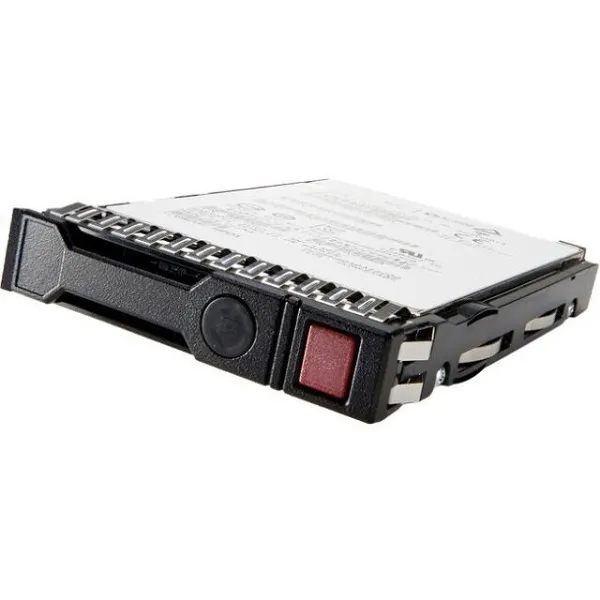
5. Replace the Failing Drive (with a Certified Part)
Once a drive is confirmed faulty, replace it immediately using:
- HPE Certified Drives
- Compatible SAS or SATA models
Recommended Drives:
HP server hard drive issues
| Drive | Model | Capacity |
|---|---|---|
| HPE 872475-B21 | SAS 10K | 1.2TB |
| HPE 801882-B21 | SSD | 480GB |
| HPE 870753-B21 | SATA | 2TB |
Always verify compatibility with your server generation (Gen8, Gen9, Gen10, etc.).
Where to Buy Genuine HP Server Hard Drives in 2025
For reliable and warranty-backed HP drives, consider:
- ServerPartss.com – HPE certified drives
- HPE Authorized Distributors
- Amazon Business & Newegg (from certified partners)
Avoid buying used drives unless they’re refurbished by HP with warranty.
Pro Tips for Preventing Future Drive Failures
- Use RAID 10 for better redundancy
- Monitor drive health monthly via SSA
- Enable predictive failure alerts in iLO
- Maintain proper airflow and temperature in the server rack
- Avoid mixing old and new drives in the same array
Conclusion
Hard drive issues in HP servers can lead to serious downtime — but with the right tools and timely action, you can fix problems before they escalate. Use this 2025 troubleshooting guide to keep your ProLiant servers stable, fast, and secure.
Need to replace a drive today? Visit ServerPartsS.com for 100% genuine HP hard drives with global shipping.